
Orders taken at the table.The kitchen sees them at once.
ImmanityApp runs on the waiter's phone, ImmanityDesk on the restaurant's computer. Service carries on even when the connection drops.
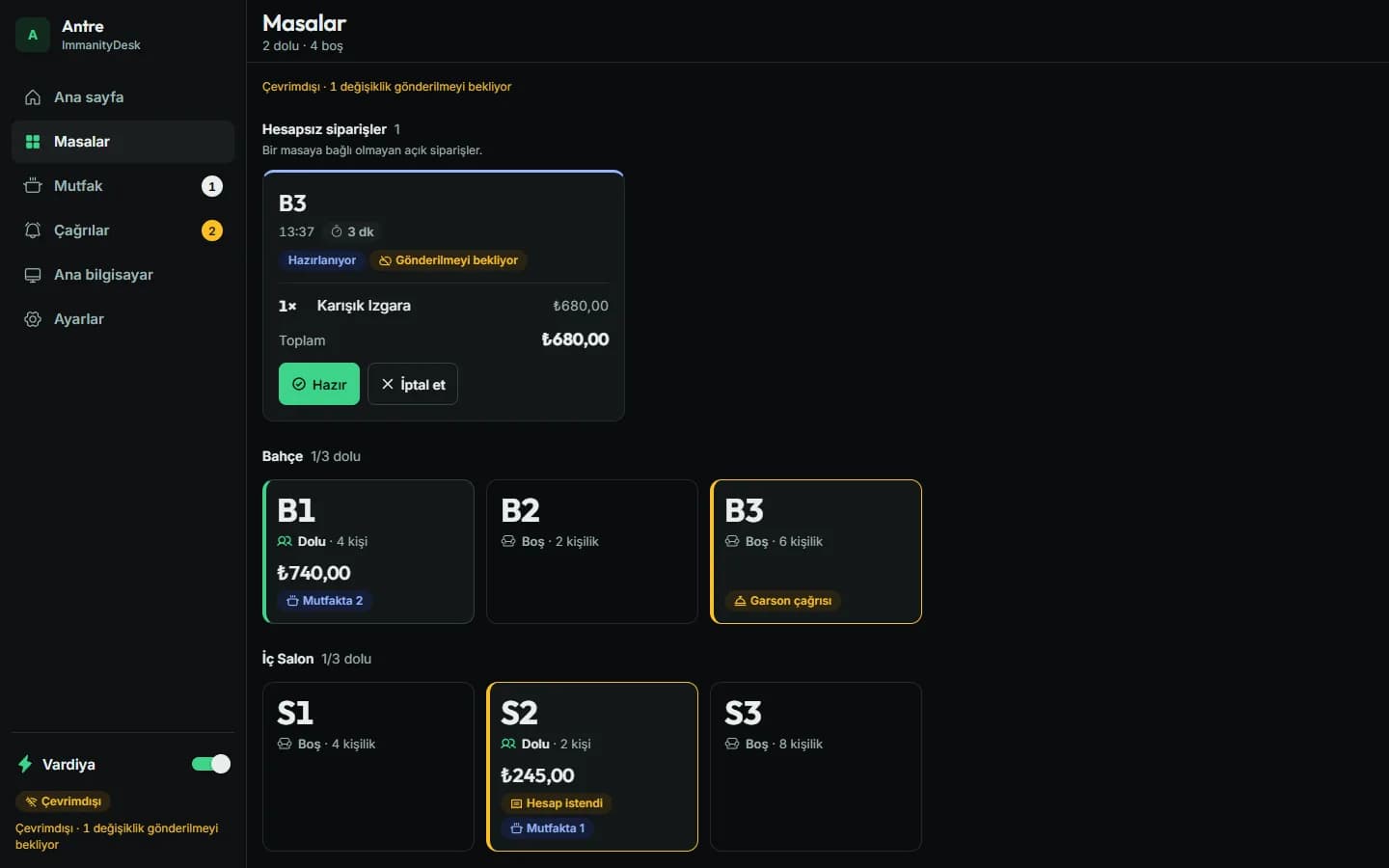
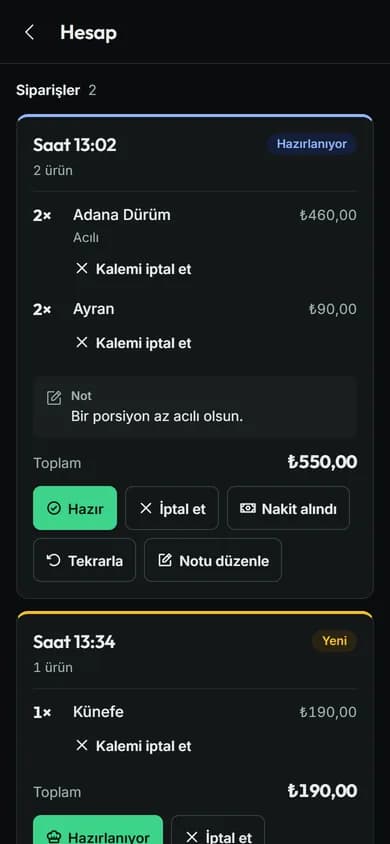
ImmanityApp · phone
Service does not stop when the internet does.
The table and order screens work without a connection.
- The first pairing needs the internet; after that, work continues without it.
- A computer in the restaurant is optional; phones work on their own too.
The three screens of the floor
The rows on the app's home screen carry the same names as the jobs on the floor; there is nothing else to learn.
- Tables
- Open a bill, write the order, close the bill as cash received. Orders placed from the QR menu on your site land on the same table.
- Kitchen
- Orders move through the new, preparing and ready columns. A table with an open order in the kitchen cannot have its bill closed.
- Floor plan
- You draw areas, seat counts and the floor plan in the app; the panel only shows the same plan.
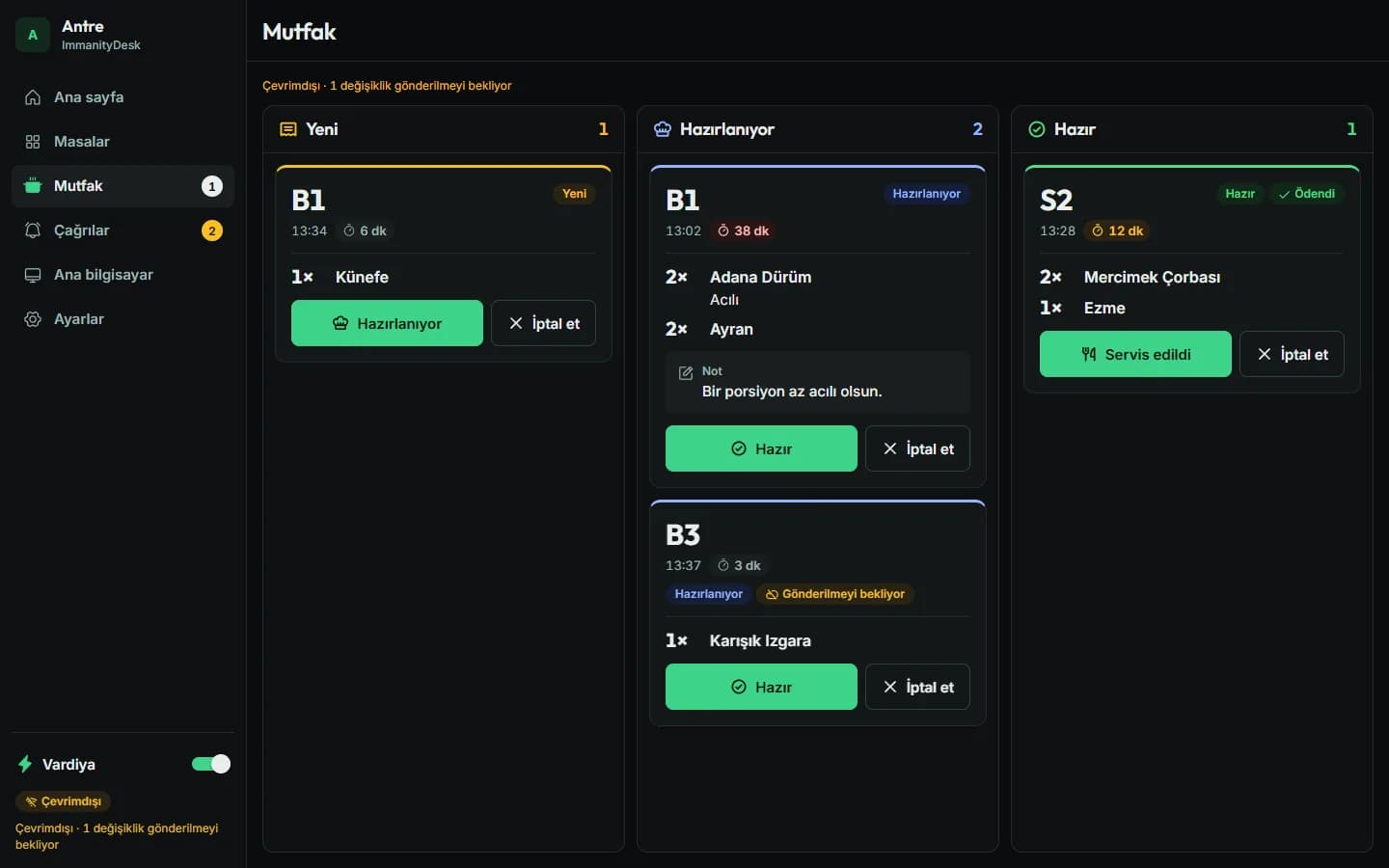
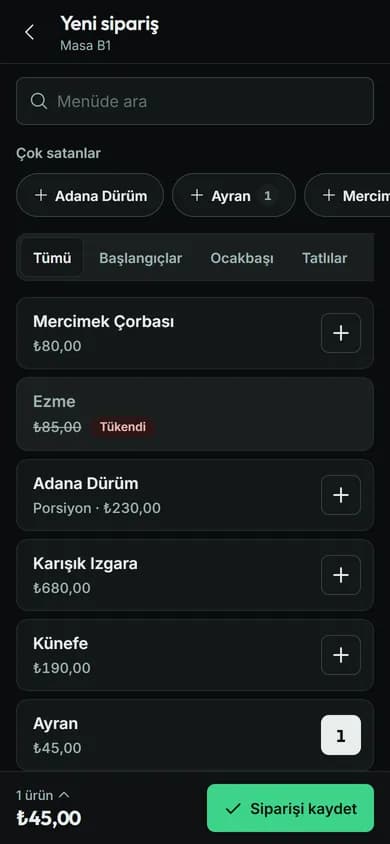
The restaurant's computer: ImmanityDesk
Installed once on Windows. When the internet drops, phones keep working through it.
- The receipt printer connects over the network or by USB; every order prints on its own, including QR orders from your site.
- You pick the printer from a list; there is no name to type.
How to get it
The app is used by businesses with the QR menu and its premium module switched on.
- 1
Open the App page in your panel
Download links, your business address and sign-in details are there; the setup steps are ticked off in order.
- 2
Connect the device to your business
Sign in with your panel account; if you run more than one business, choose which one to connect. This step needs the internet.
- 3
Give your team access
Decide in the panel who takes orders and who edits the floor plan; see connected devices on the same page and remove one if needed.
Not on Immanity yet?
Pick the restaurant template, add the QR menu module; the app is then available from your panel.